
QuickBars for Home Assistant
TroopedHouse & Home
4.715.00 Reviews
- Version
- 1.3.3
- Installs
- 10.00K
- Age Rating
- Everyone
Screenshots
Our Review of QuickBars for Home Assistant
 Analysis by Appyee
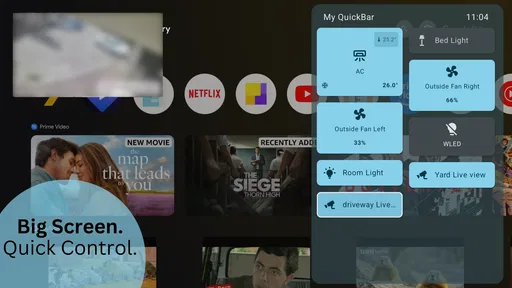
The appeal of QuickBars for Home Assistant is easiest to understand when you already use Home Assistant on a television and want a more direct way to reach a few everyday controls. I think of it as a focused companion for moments when opening a full smart-home dashboard feels like more work than the task itself. It is a free House & Home app from Trooped, rated for Everyone, and its idea is straightforward: put useful controls within reach on the TV rather than making every adjustment a trip through menus.
That focus is also the main question to ask before installing it: do you want a television-friendly layer for repeated actions, or do you need a complete interface for building and managing your smart home? Those are different jobs. QuickBars makes more sense for the first one, especially if Home Assistant is already part of your setup and you know which actions you reach for most.
What Exactly is QuickBars for Home Assistant?
So, let’s break it down. QuickBars for Home Assistant is an app designed to simplify your interaction with the Home Assistant platform. If you’re already using Home Assistant, you know it’s incredibly powerful but can sometimes be a bit overwhelming. QuickBars steps in as a sleek, user-friendly interface that lets you control your smart home devices with ease.
Getting Started with QuickBars
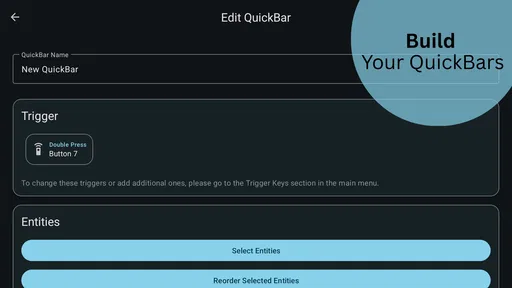
Setting up QuickBars was a breeze. I downloaded it from the app store, and within minutes, I was ready to roll. The app guides you through connecting to your existing Home Assistant setup, and before you know it, you’re creating custom control panels, or ‘bars,’ that suit your personal needs.
The great thing about QuickBars is its flexibility. Whether you’re a novice or a tech-savvy veteran, the app adjusts to your level of expertise. You can start simple, with basic on/off switches, or get fancy with detailed control panels.
A sensible first setup for TV use
I’d begin with a small bar for actions you genuinely use while watching TV, rather than trying to recreate every room and device at once. Think of the lights near the screen, a favorite scene, or another control you regularly need from the sofa. Keeping the first set narrow makes it easier to see whether the TV overlay solves a real annoyance in your routine.
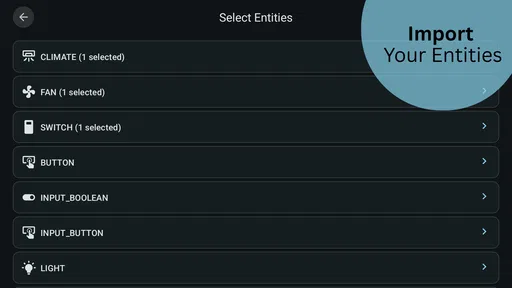
Before relying on a control, check that the corresponding Home Assistant entity is already working as expected in your usual setup. That simple separation helps with troubleshooting: if an action behaves oddly from the bar, you can compare it with the same action in Home Assistant instead of guessing whether the device, automation, or TV control is responsible.
User Interface and Design
I’m a sucker for good design, and QuickBars doesn’t disappoint. The interface is clean and intuitive, with a minimalist approach that highlights functionality over fluff. The design ensures that you’re never more than a few taps away from controlling your smart devices.
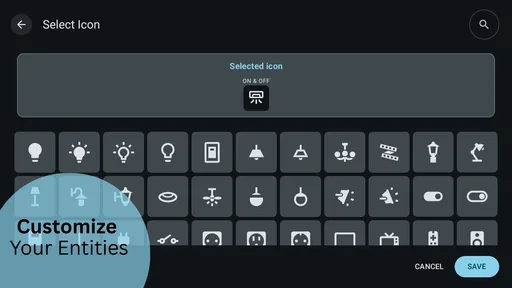
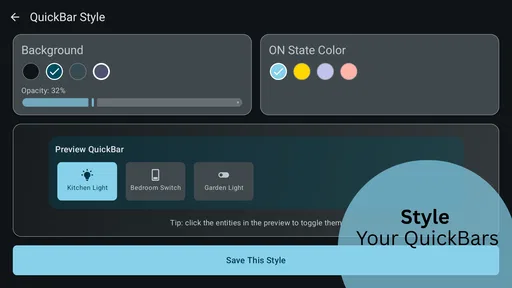
One of my favorite features is the ability to customize the layout. You can arrange your controls in a way that makes sense to you, whether that’s grouping them by room or by function. This level of personalization is fantastic, especially for larger smart home setups.
Settings that matter more than decoration
When I’m setting up a TV control surface, I care less about making it elaborate and more about making it hard to misuse. Put the actions you need most in the easiest positions to reach, and avoid filling a bar with near-identical choices. A tidy layout reduces the chance of choosing the wrong light or scene when you only meant to dim the room.
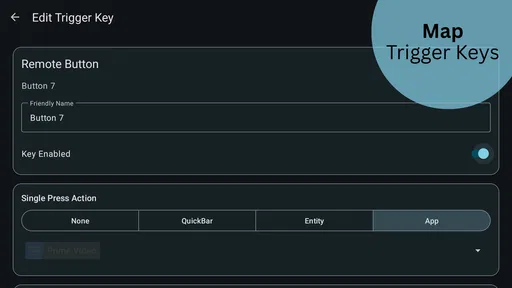
Remote key actions are central to the app’s TV-oriented purpose, so it is worth checking how the controls feel with the remote you actually use. A layout that looks clear on screen can still be awkward if reaching a particular action takes too many directional-key presses. I’d test the common route from the sofa, not just the initial setup at close range.
Features That Stand Out
Now, let’s talk features. QuickBars offers a variety of options that make it a standout app in the smart home landscape. Here are a few that caught my eye:
- Quick Access: Create shortcuts for your most-used devices or scenes. It’s all about getting things done fast.
- Widgets: Add widgets to your home screen for even quicker access to your favorite controls. No need to open the app every time.
- Customizable Themes: Switch up the look of your interface to match your style or mood. It’s a small touch, but one that adds a layer of personality to the app.
Repeatable habits beat a crowded control bar
A useful way to think about shortcuts is as part of a routine, not a list of everything the home can do. For example, I might keep the living-room lights and a preferred scene together because those are the controls I reach for while settling in to watch something. If a guest or another household member also uses the TV, a few obvious choices are easier to learn than a dense panel full of specialist controls.
There is a trade-off: a dedicated shortcut can save navigation, but it also gives that action a prominent place. I’d avoid putting an occasional or consequential action beside the everyday lighting controls unless the layout makes the distinction clear. The practical goal is fewer steps without making the wrong choice easier.
Performance and Reliability
In terms of performance, QuickBars runs smoothly. I haven’t encountered any lag or crashes, which is crucial for an app that you rely on daily. The integration with Home Assistant is seamless, and commands are executed promptly.
Reliability is key when managing your home, and QuickBars delivers. I tested it with various devices, from lights to thermostats, and it handled them all without a hitch. The app’s stability gives me confidence that I can depend on it day in and day out.
Everyday use, and where another option fits better
Picture a normal evening: you sit down, realize the room is too bright, and want to change the lighting without picking up a phone or leaving the TV. A small, familiar set of TV controls can make that task feel natural. The same idea can suit a shared living room where people want a few useful Home Assistant actions without learning the full dashboard.
For a phone-first user, though, the Home Assistant app or an existing mobile dashboard may be the better fit. A phone is usually close at hand, and a full dashboard can show more context than a compact TV control surface. QuickBars is most compelling when the television and remote are already the natural way you interact with the room; it is less useful if you rarely control devices from the TV.
It also helps to distinguish control from automation. A quick action is handy when you decide what to do in the moment. If a behavior should happen automatically at a particular time or in response to a condition, that belongs in your Home Assistant automation workflow rather than in a bar that you must remember to activate.
Limits worth understanding before you depend on it
QuickBars is a companion to an existing Home Assistant setup, not a replacement for that platform. You still need your devices, entities, and automations organized where Home Assistant can use them. If those foundations are unclear, adding a TV overlay may give you another place to troubleshoot without fixing the underlying setup.
There is also a natural limit to how much belongs on a television. TV controls are useful for deliberate, occasional actions, but they are not necessarily the best place to inspect detailed device status or manage a complicated configuration. I’d keep the bar focused and use Home Assistant itself when I need the broader view or want to change how a device works.
Compatibility is another sensible thing to check before building a routine around it: the app’s minimum operating-system requirement is Android 9, and the intended experience depends on using Home Assistant from a TV. If your device or setup does not match that use, the app’s central convenience may not apply. The current version is 1.3.2, and it has reached more than 10,000 installs; its 4.7 average comes from 126 ratings, with 13 written reviews. Those figures suggest a positive reception, but I’d still judge it by how well the TV workflow fits your home.
Who I’d recommend it to
I’d recommend QuickBars to someone who already has a working Home Assistant setup, watches TV in a room with smart devices, and wants a handful of remote-friendly controls. It is particularly attractive when repeated phone handling is the friction you want to remove. The app is free, so trying a modest setup is a low-commitment way to see whether controlling the home from the TV becomes a habit.
I’d skip it if you are looking for a complete smart-home system, a replacement for Home Assistant’s configuration tools, or a reason to move every control onto a television. It also may not be worthwhile if your routine already works smoothly through voice control, automations, or a phone dashboard. A new shortcut is only an improvement when it removes a step you actually notice.
Final Thoughts
Overall, QuickBars for Home Assistant is a must-have for anyone looking to streamline their smart home experience. It’s user-friendly, highly customizable, and packed with features that make managing your devices a breeze.
If you’re ready to simplify your life and take control of your smart home with style and efficiency, give QuickBars a try. It’s one of those apps that you’ll wonder how you ever lived without.
Happy automating!
Verdict
Strengths of QuickBars for Home Assistant
- Intuitive user interface for easy navigation.
- Seamless integration with Home Assistant.
- Customizable widgets for quick access.
- Real-time updates on smart devices.
- Supports automation and routines.
Limitations of QuickBars for Home Assistant
- Requires Home Assistant setup.
- Limited features on free version.
- Occasional sync issues reported.
- No offline functionality available.
- High battery usage on frequent updates.
Similar Picks in This Category
View All
Universal TV Remote Control
CodeMatics Media Solutions3.9

AlfredCamera Home Security app
Alfred Systems Inc.4.7

Planner 5D: AI Home Design
Planner 5D4.5

Universal Tv Remote-Cast to TV
One Music Player4.1

Zillow: Homes for Sale & Rent
Zillow Group4.8

99acres Buy/Rent/Sell Property
infoedge.com4.3
Frequently Asked Questions
What is QuickBars for Home Assistant?
QuickBars for Home Assistant is an app designed to seamlessly integrate and manage your smart home devices. It allows users to quickly access and control various smart home elements through customizable quick action bars, enhancing the Home Assistant experience with more intuitive and efficient navigation.
Is QuickBars compatible with all smart home devices?
QuickBars is compatible with a wide range of devices supported by Home Assistant. However, compatibility may vary depending on specific device models or configurations. It's advisable to check the app’s documentation or support page to ensure your devices are supported before downloading.
How user-friendly is QuickBars for new users?
QuickBars is designed with user-friendliness in mind, offering an intuitive interface that allows for easy setup and customization. New users can benefit from comprehensive tutorials and a supportive community, making it accessible even if you're new to Home Assistant or smart home setups.
What customization options does QuickBars offer?
QuickBars offers extensive customization options, allowing users to create personalized quick access bars tailored to their specific needs. Users can choose from various layouts, themes, and actions, ensuring the app can adapt to different preferences and enhance the smart home experience.
Are there any additional costs or in-app purchases in QuickBars?
QuickBars may offer a free version with basic features and optional in-app purchases for advanced functionalities or premium themes. It's important to review the app’s pricing details in the app store to understand any potential costs associated with additional features.
